Project Copy
Description
The Project Copy feature allows your team to quickly and easily duplicate an existing project, while also giving them the ability to customize various aspects of the new project such as its name, description, due dates, applications, and team assignments.
Project copy saves your team time and effort in creating new projects from scratch. Additionally, the ability to shift due dates relative to the earliest/latest due date in the original project allows for greater flexibility in scheduling and project management. The option to receive an email with a link to the new project instead of waiting for it to be created also adds convenience and efficiency to the process. Overall, the project copy feature streamlines project creation and management, enabling users to focus more on their project's goals and objectives.
This add-on is part of Freedcamp Business and Enterprise plans.
Adding/Removing the Project Copy module
Please see this documentation article for a guide on installing/removing add-ons and modules.
How to use
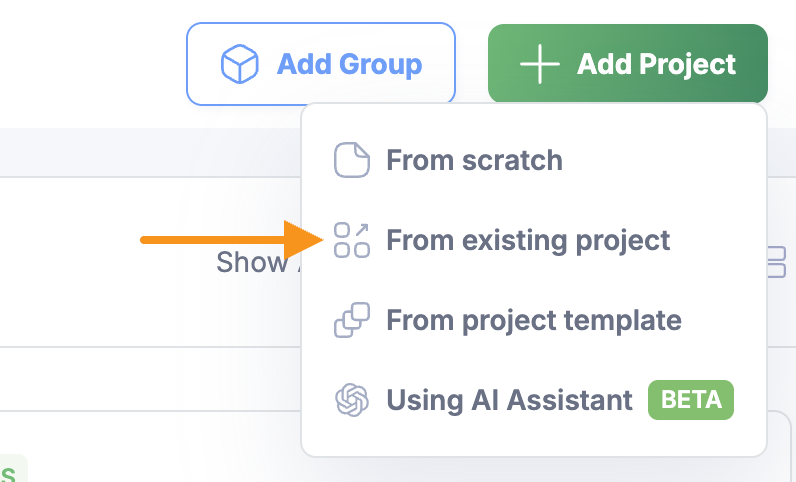
Click Add Project and choose 'From existing project' on the Manage System, Projects Board, Home Page or classic Home page. Group administrators in your account have access to this module and will be able to use it within your account.
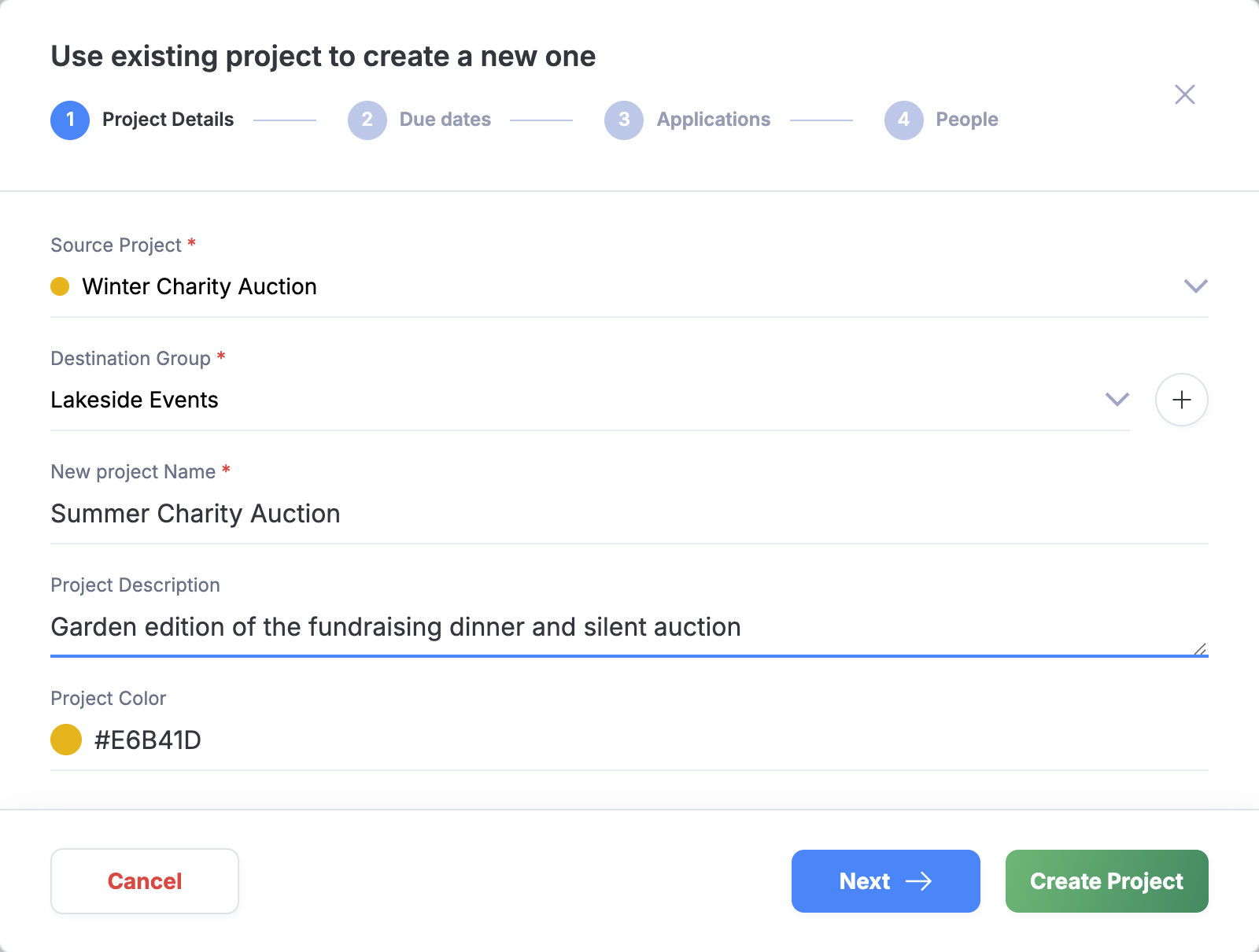
In step one - you select a project to copy from and the destination group, then type the new project name and description. You can also change the project color.
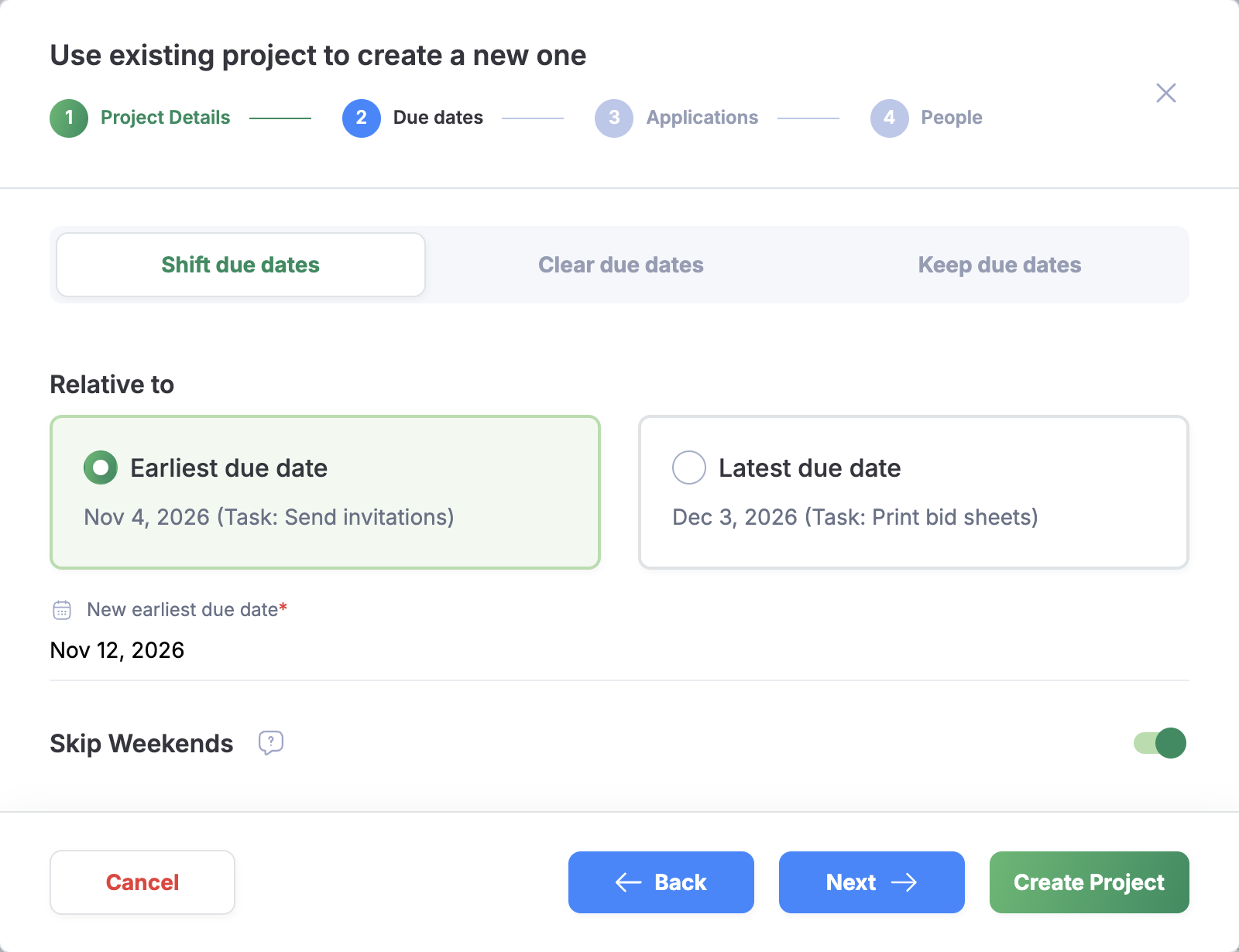
In step two - you can either remove all due dates (Clear due dates, the preselected choice) or keep them (Keep due dates). We also allow you to shift forward or backward all due dates relatively to the earliest/latest due date in your original project.
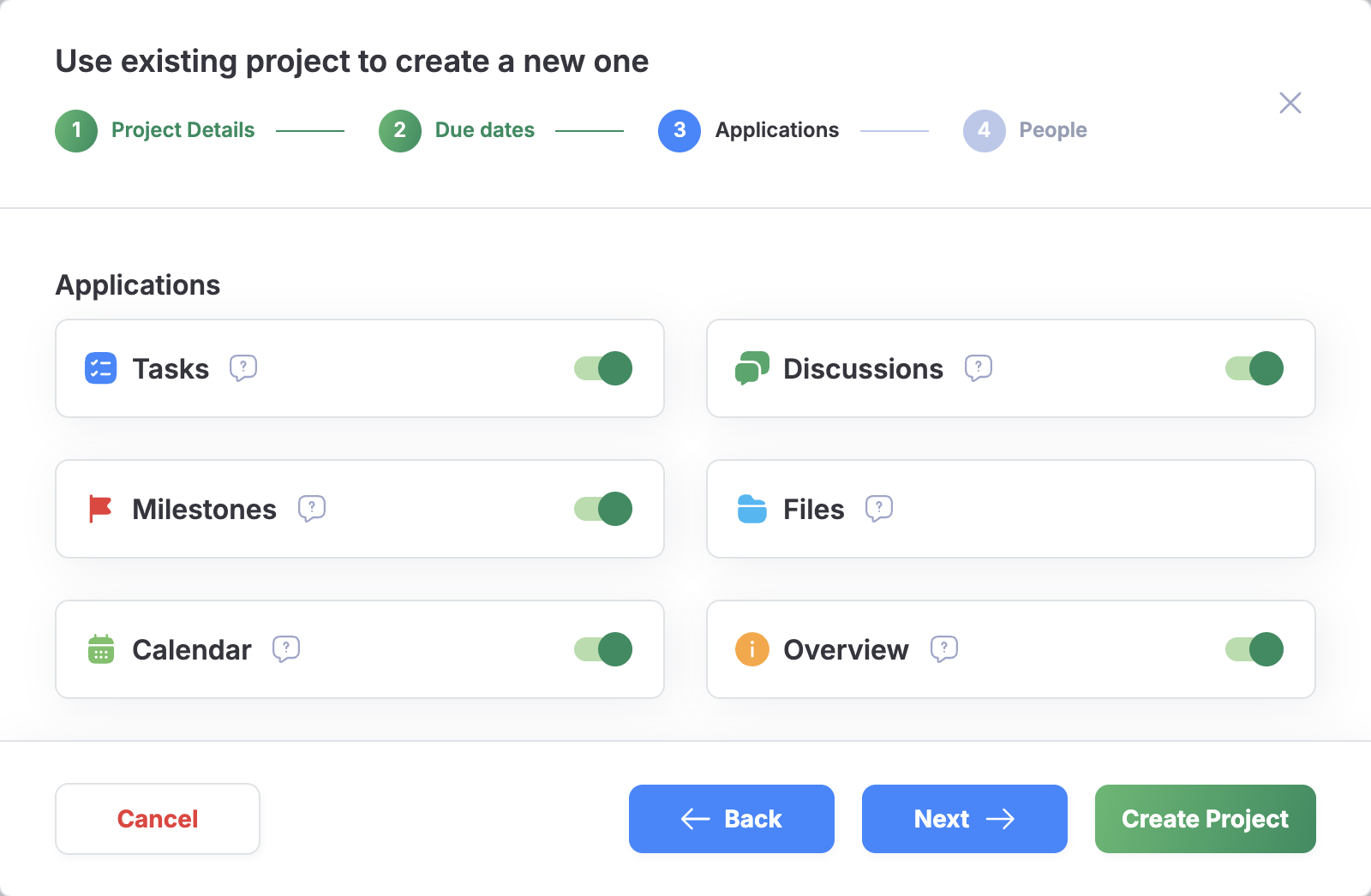
In step three - select what applications will go into the new project. Often you do not want to copy discussions or time tracked. If you use Freedcamp we assume that you know that each project can have its very own set of applications added.
In step four - you select if you want to keep the team assigned (Keep all users), keep the team but clear assignments and followers (Keep but unassign/unfollow) or remove everyone (Remove all users), and whether you want the new project to be available right away or archived after it is created (the Archive Project switch) to make adjustments without creating noisy notifications for its participants during preparation phase by you or project managers in your team
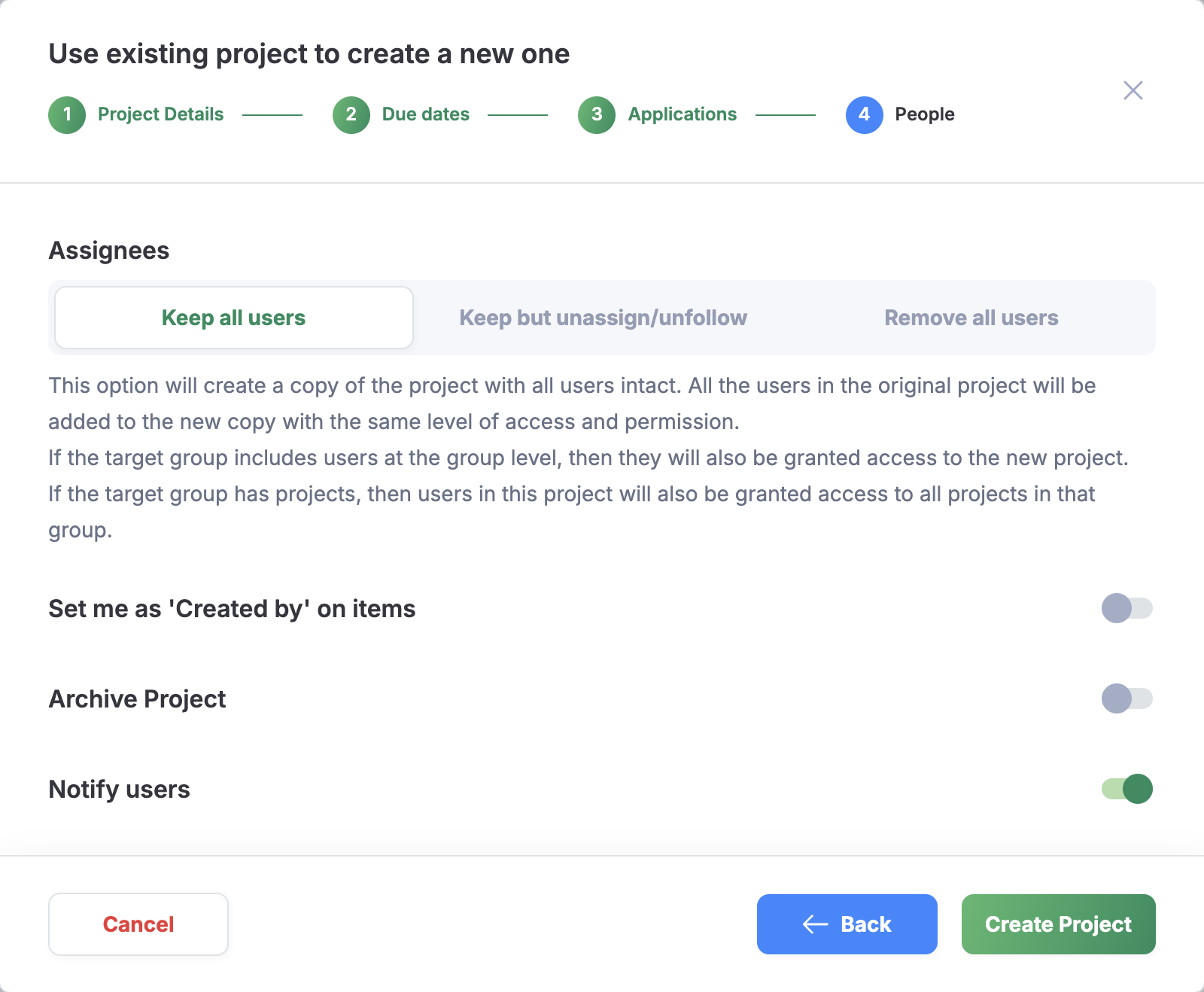
Because an original project can have a lot of files we decided not to leave you waiting in front of the screen for a new project to be created but to send you an email with a link to a new project instead.
What is not copied
Not everything is copied over to the new project.
- Creation date: all items in the new projects will have the creation date set as the current date
- Comments (regardless of item)
- Progress status: Tasks and Milestones will be set as not completed, and Issues will be set as Open.
- Private items (in Discussions and Wikis) will be copied even if the user duplicating the project does not have access to them (if users are removed from the new project the private items will only be visible to the project owner)
- Time entries will be marked as not completed and their dates will be set to NULL.
- Custom Fields for Projects - we apply a template but do not copy values set on the original project.
Group Administrators
If you make User A a group admin in groups X and Y they can duplicate projects from X to X from Y to Y, from Y to X and from X to Y. They can not 'hijack' a project and copy from X to Z belonging to User A or any other user.
Group admins can duplicate projects in your account and between project groups where they are set as group administrators by you.
Use Cases
- Create a project group 'Templates' and create your template projects with start/end dates and assigned to people, if it will save you time down the road.
- Use an existing project (including archived) to create a new project.
- Use an existing project to make a copy of it in the Templates project group - clean up and use it for the future project's creation.
During duplication, especially when you copy the actual completed project as per (2-3) above, you can uncheck applications like Calendar and Discussions to skip copying source project meetings and discussions not relevant to a new project.
If your project scope changes you can always copy task lists from any other project including your template projects to a running project and use Shift Dates to adjust start and end dates on tasks.
Sources of project templates online
Freedcamp now has a built-in library of public project templates, grouped by category, under Manage SystemTemplates (Add ProjectFrom project template). You can also download checklists from https://checklist.com/tag/business or https://checklist.com/tag/personal/ and import them as XLS to adjust.
Splitting a project
At the moment, project templates can not be used for splitting a project unless you are not interested in copying some information - see 'What is not copied' section above. We recommend using the copy/move tasks and task lists function instead, even though it only works for tasks and issues, not the other applications.