Homepage
We currently have two versions of the page: a newly released one that’s enabled by default, and an old version that users can revert to. This wiki covers both, but we will not be able to maintain two homepages forever, so the old one will be removed at some point.
Therefore, we encourage any users who think the new homepage can be improved to email us at help@freedcamp.com
The New Homepage
The New Homepage is composed of 3 sections: Work, Important Updates and Agenda.
The Customize button in the top-right of the page allows you to: show or hide greetings and quotes, show groups and projects on items, choose how Work items are combined and sorted, hide Important Updates, place the Agenda on the left, and switch to the Classic Layout.
My Work
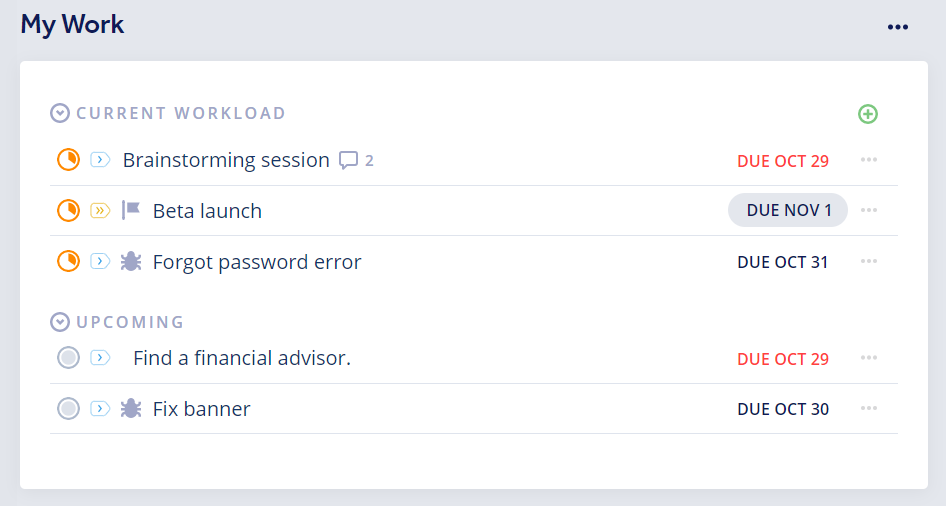
Located on the left of the page (or on the right if you turn on Place Agenda Left), the Work panel keeps you up to date with your items.
By default all your items are shown in one combined list. If you switch off 'Combine current, upcoming and unassigned tasks' in Customize, the Current Workload section shows tasks assigned to you, milestones, issues and events that you are involved in that are currently in progress.
The Upcoming section shows you items assigned to you that are due soon or overdue.
My Projects
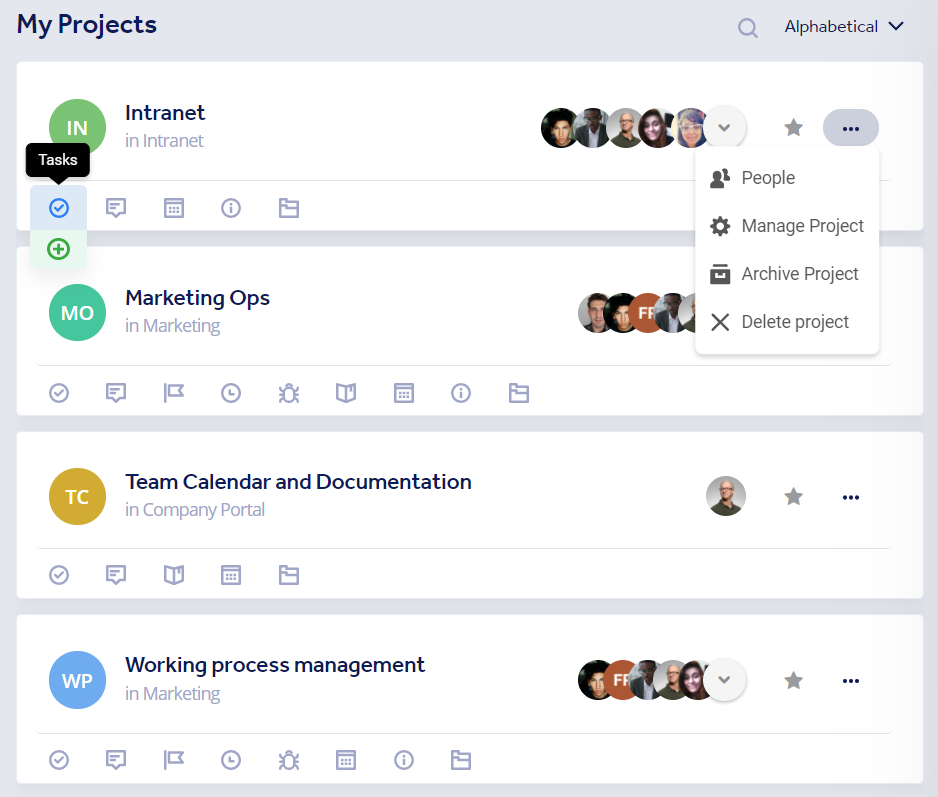
The new Home page no longer has a My Projects section. To see all your projects, open Projects in the sidebar (the Projects Board), where you can filter, reorder and favorite projects and open their applications.
Agenda
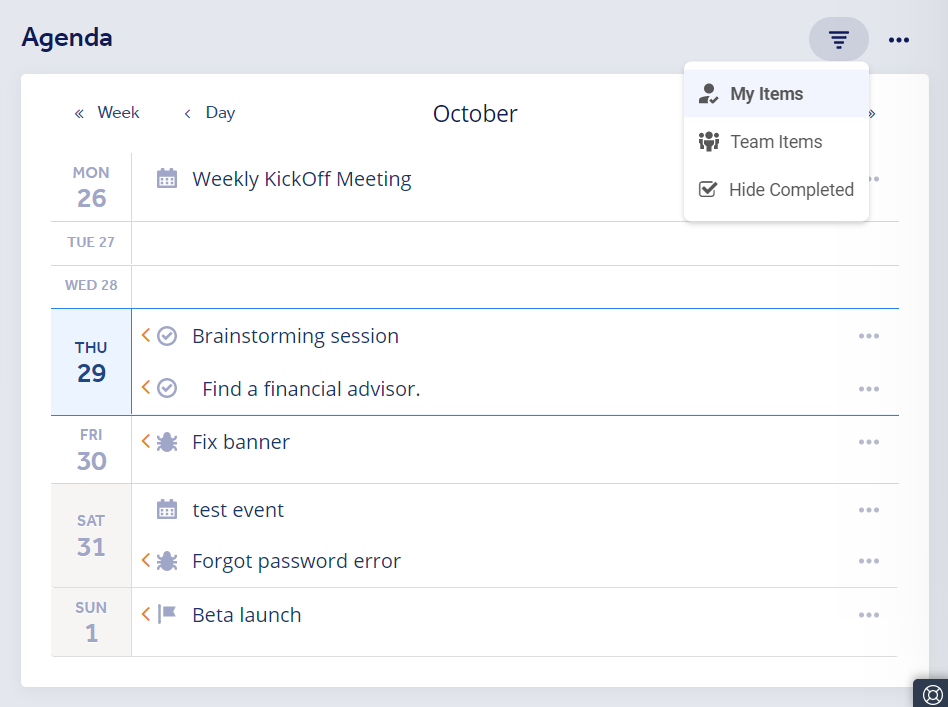
This section shows an agenda style view of your week. By default, it starts from the first day of the current week (switch off 'Start from week start' in the Agenda's 3-dot menu to start from today), but using the Day and Week buttons at the top allows you to move back and forth in the time period you see.
The Classic Homepage (old layout)
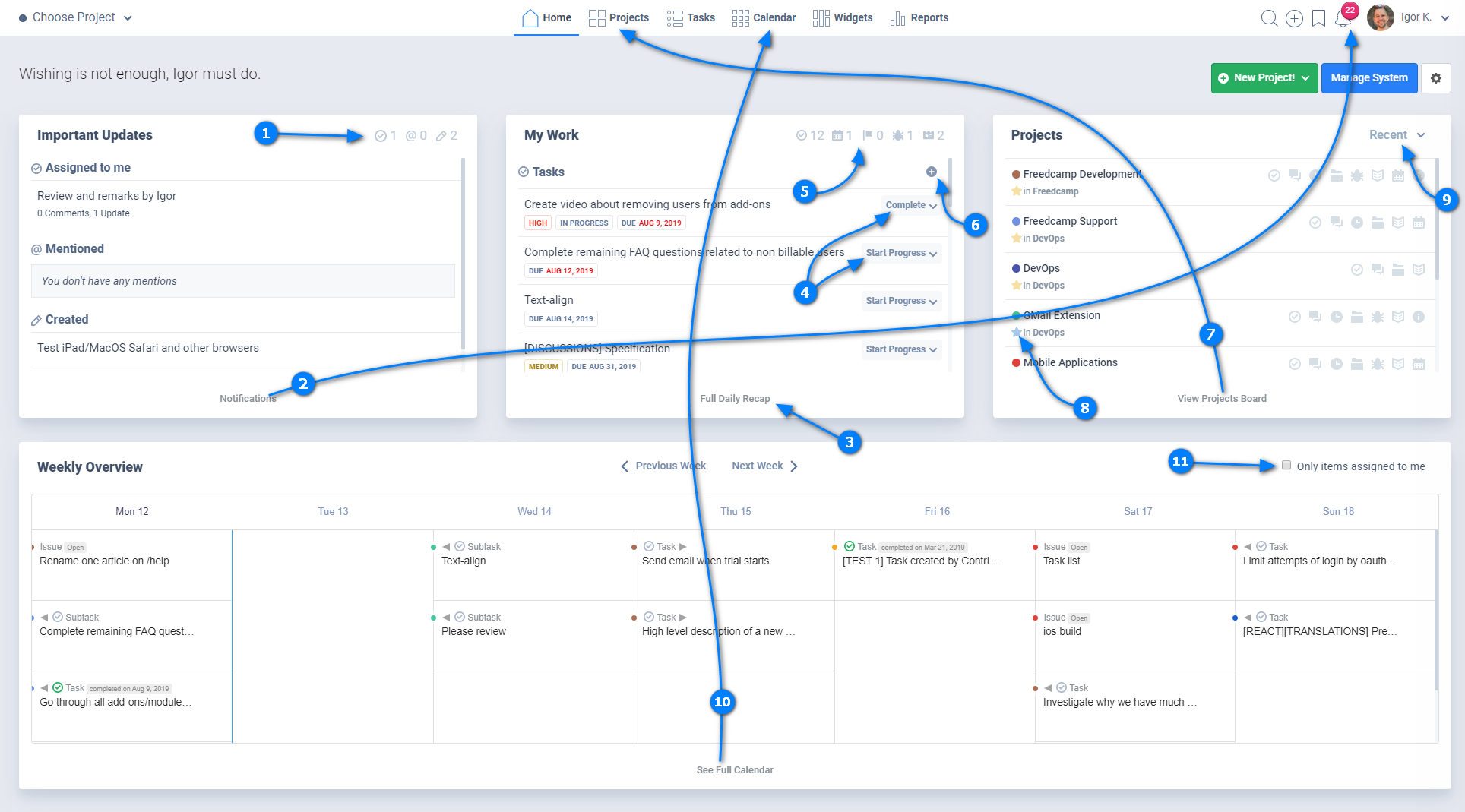
Our homepage is comprised of four sections: Important Updates, My Work, Projects and Weekly Overview. The 3 sections at the top can be rearranged by dragging and dropping.
Clicking the settings icon in the top-right of the page allows you to:
- Reorder your project groups and projects
- Try an alternative Home Page (switches you to the new Home page)
- Hide the Greetings and Quotes
If the default homepage isn't giving you the information you need, you can change it to the Projects Board, Tasks Board, Calendar Board, Widgets Board and Notifications. More info here.
Important Updates
- This section shows you a summary of your notifications: items assigned to you, mentions, and activity in items you created.
- Clicking the Notifications text at the bottom of the updates section, or the notifications icon in the top-menu, will take you to the Notifications page, which shows you a detailed view of your updates.
My Work
- My Work shows you a summary of Tasks, Events, Milestones, Issues, CRM tasks and calls that have been assigned to you. Clicking the Full Recap text will take you to the Recap Page.
- Change the progress of your items directly from here.
- You can see how many items are assigned to you across each category.
- Use the (+) icon to add items without going to the page of that particular add-on.
Projects
- Access the full Projects Board by clicking the text at the bottom of the section.
- Click the star next to a project's name to favorite it.
- There are different order options: Favorites, Recent, Custom Order, Alphabetical.
Weekly Overview
- 'Weekly overview' is a summary of your calendar for the week. You can click the text at the bottom of the section to see the Calendar Board.
- By default, it shows items assigned to everybody in your projects, but it can also be set to only show items assigned to you.